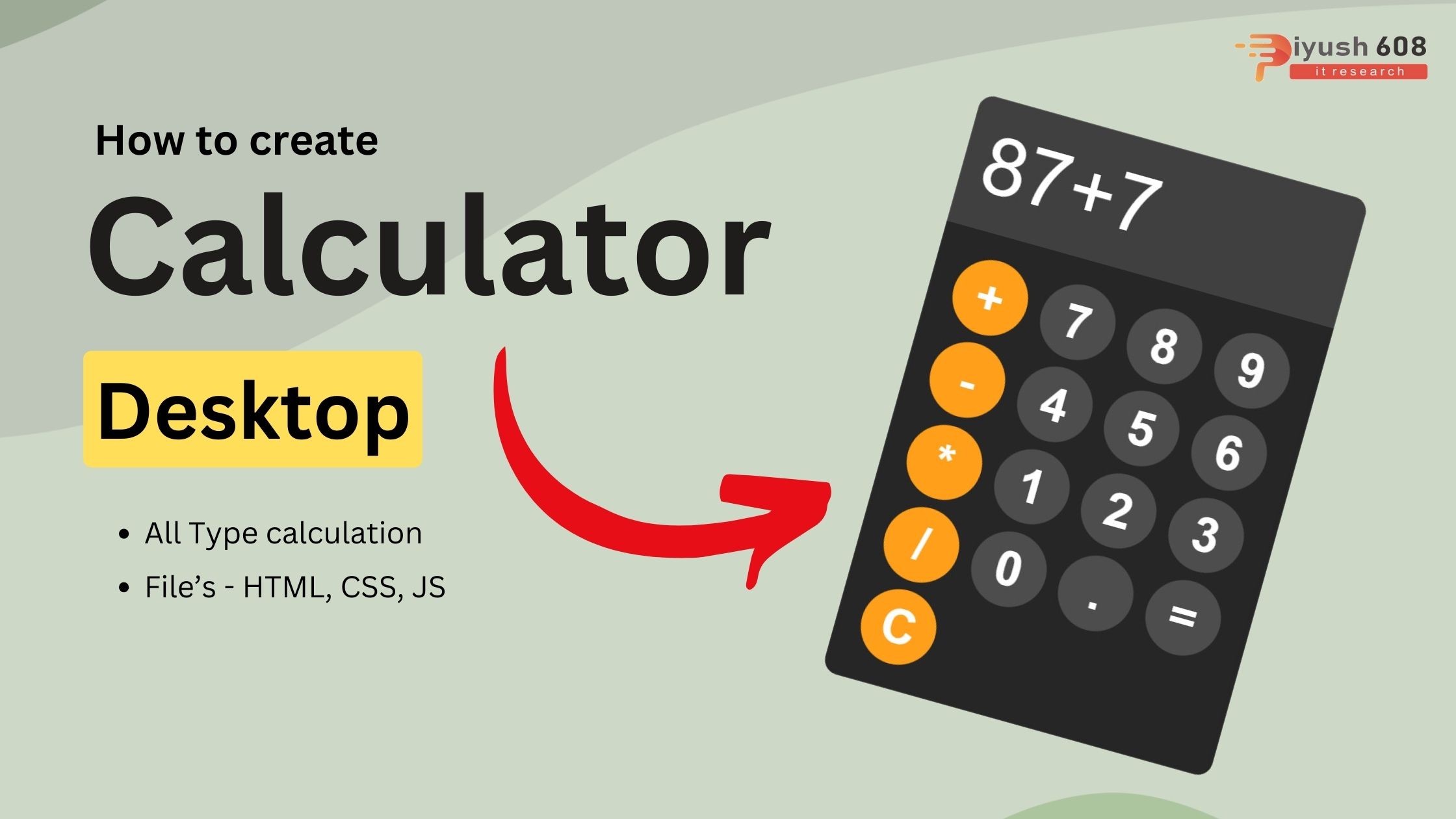
Creating a basic calculator involves creating a user interface with buttons for numbers and operations, and using JavaScript to handle the logic of calculations. Here’s a simple implementation:
HTML
<!DOCTYPE html>
<html lang="en">
<head>
    <meta charset="UTF-8">
    <meta name="viewport" content="width=device-width, initial-scale=1.0">
    <title>Aravind Kreshna - Calculator | JavaScript Mini Projects</title>
    <link rel="stylesheet" href="style.css">
</head>
<body>
    <div id="calculator">
        <input type="text" id="display" readonly>
        <div id="keys">
            <button onclick="appendToDisplay('+')" class="operator-btn">+</button>
            <button onclick="appendToDisplay('7')">7</button>
            <button onclick="appendToDisplay('8')">8</button>
            <button onclick="appendToDisplay('9')">9</button>
            <button onclick="appendToDisplay('-')"class="operator-btn">-</button>
            <button onclick="appendToDisplay('4')">4</button>
            <button onclick="appendToDisplay('5')">5</button>
            <button onclick="appendToDisplay('6')">6</button>
            <button onclick="appendToDisplay('*')"class="operator-btn">*</button>
            <button onclick="appendToDisplay('1')">1</button>
            <button onclick="appendToDisplay('2')">2</button>
            <button onclick="appendToDisplay('3')">3</button>
            <button onclick="appendToDisplay('/')"class="operator-btn">/</button>
            <button onclick="appendToDisplay('0')">0</button>
            <button onclick="appendToDisplay('.')">.</button>
            <button onclick="calculate()">=</button>
            <button onclick="clearDisplay()"class="operator-btn">C</button>
        </div>
    </div>

    <script src="script.js"></script>
</body>
</html>
CSS (styles.css)
body{
    margin: 0;
    display: flex;
    justify-content: center;
    align-items: center;
    height: 100vh;
    background-color: hsl(0, 0%, 90%);
}
#calculator{
    font-family: Arial, sans-serif;
    background-color: hsl(0, 0%, 15%);
    border-radius: 15px;
    max-width: 400px;
    overflow: hidden;
}
#display{
    width: 100%;
    padding: 20px;
    font-size: 5rem;
    text-align: left;
    border: none;
    background-color: hsl(0, 0%, 25%);
    color: white;
}
#keys{
    display: grid;
    grid-template-columns: repeat(4,1fr);
    gap: 10px;
    padding: 25px;
}
button{
    width: 75px;
    height: 75px;
    border-radius: 50px;
    border: none;
    background-color: hsl(0, 0%, 30%);
    color: white;
    font-size: 3rem;
    font-weight: bold;
    cursor: pointer;
}

button:hover{
    background-color: hsl(0, 0%, 40%);
}
button:active{
    background-color: hsl(0, 0%, 50%);
}
.operator-btn{
    background-color: hsl(35, 100%, 55%);
}
.operator-btn:hover{
    background-color: hsl(35, 100%, 65%);
}
.operator-btn:active{
    background-color: hsl(35, 100%, 75%);
}
JavaScript (script.js)
const display = document.getElementById('display');

function appendToDisplay(input){
    display.value += input;
}


function clearDisplay(){
    display.value = "";
}

function calculate(){
    try{
        display.value = eval(display.value);
    }
    catch(error){
        display.value = "Error"
    }
}
Explanation
- HTML:
- The structure includes an input field for the display and buttons for the digits, operators, and actions.
- Each button has a
data-valueattribute to store its value.
- CSS:
- Basic styling for the calculator layout, including a grid layout for the buttons.
- Different styles for number buttons, operator buttons, the equal button, and the clear button.
- JavaScript:
- Event listeners are added to each button to handle the click event.
- When a button is clicked, its value is appended to the display or an appropriate action (clear, calculate) is performed.
This setup provides a simple yet functional calculator. You can extend it further by adding more advanced features like keyboard support, scientific functions, or a more sophisticated UI.
Read this also :




 +91 7905834592
 Enquiry Now
 piyushmnm@gmail.com
 piyush.gupta384
Reviews
There are no reviews yet. Be the first one to write one.