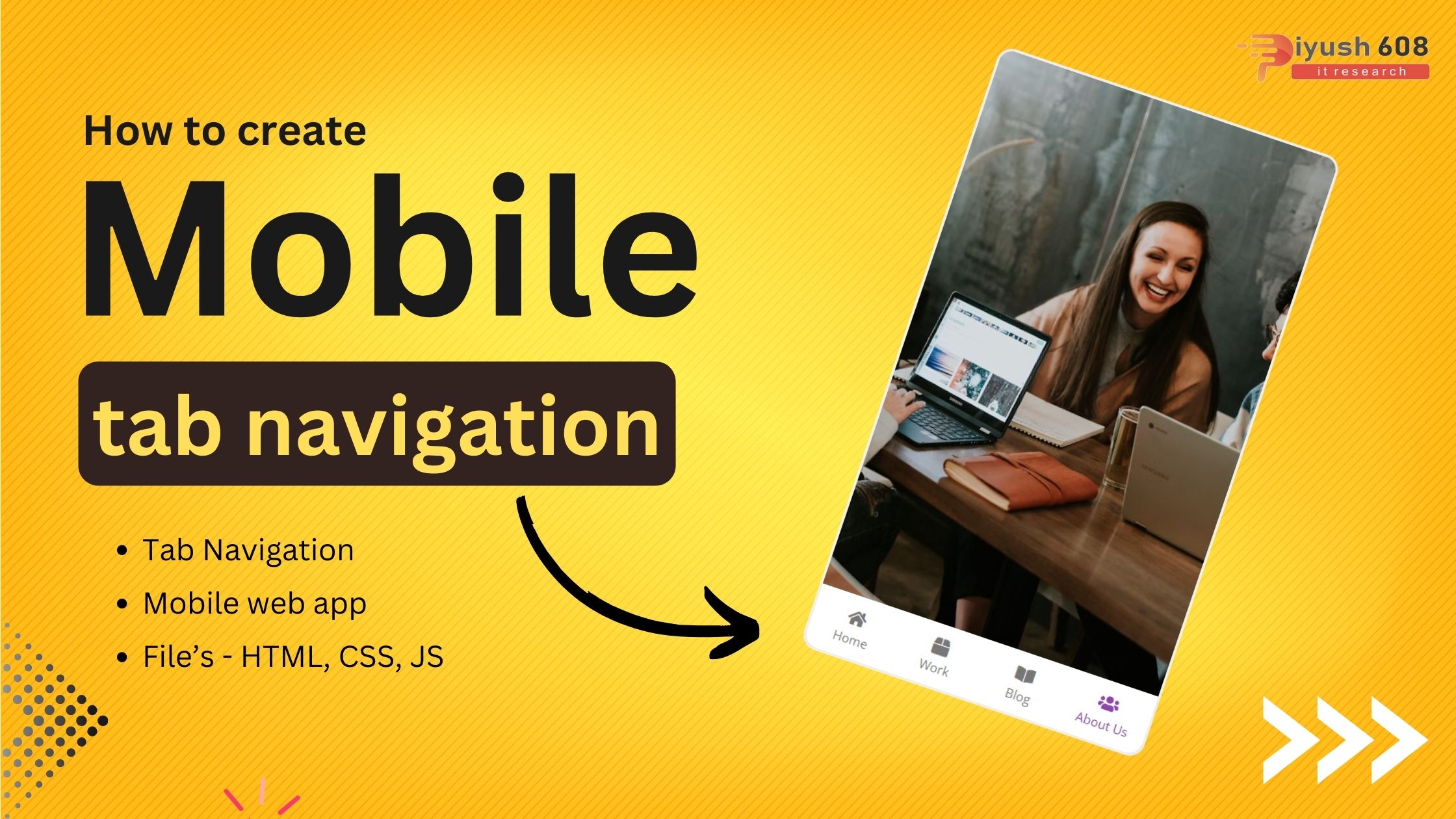
Creating a mobile tab navigation using JavaScript involves creating a set of tabs that users can switch between to see different content. Below is a step-by-step guide and the corresponding code to achieve this:
HTML
First, set up the basic structure with tabs and content sections.
<!DOCTYPE html>
<html lang="en">
  <head>
    <meta charset="UTF-8" />
    <meta name="viewport" content="width=device-width, initial-scale=1.0" />
    <link rel="stylesheet" href="https://cdnjs.cloudflare.com/ajax/libs/font-awesome/5.14.0/css/all.min.css" integrity="sha512-1PKOgIY59xJ8Co8+NE6FZ+LOAZKjy+KY8iq0G4B3CyeY6wYHN3yt9PW0XpSriVlkMXe40PTKnXrLnZ9+fkDaog==" crossorigin="anonymous" />
    <link rel="stylesheet" href="style.css" />
    <title>Mobile Tab Navigation</title>
  </head>
  <body>
    <div class="phone">
      <img src="https://images.unsplash.com/photo-1480074568708-e7b720bb3f09?ixlib=rb-1.2.1&ixid=eyJhcHBfaWQiOjEyMDd9&auto=format&fit=crop&w=1053&q=80" alt="home" class="content show">
      <img src="https://images.unsplash.com/photo-1454165804606-c3d57bc86b40?ixlib=rb-1.2.1&ixid=eyJhcHBfaWQiOjEyMDd9&auto=format&fit=crop&w=1050&q=80" alt="work" class="content">
      <img src="https://images.unsplash.com/photo-1471107340929-a87cd0f5b5f3?ixlib=rb-1.2.1&ixid=eyJhcHBfaWQiOjEyMDd9&auto=format&fit=crop&w=1266&q=80" alt="blog" class="content">
      <img src="https://images.unsplash.com/photo-1522202176988-66273c2fd55f?ixlib=rb-1.2.1&ixid=eyJhcHBfaWQiOjEyMDd9&auto=format&fit=crop&w=1351&q=80" alt="about" class="content">
      <nav>
        <ul>
          <li class="active">
            <i class="fas fa-home"></i>
            <p>Home</p>
          </li>
          <li>
            <i class="fas fa-box"></i>
            <p>Work</p>
          </li>
          <li>
            <i class="fas fa-book-open"></i>
            <p>Blog</p>
          </li>
          <li>
            <i class="fas fa-users"></i>
            <p>About Us</p>
          </li>
        </ul>
      </nav>
    </div>
    <script src="script.js"></script>
  </body>
</html>
CSS
Style the tabs and content to make them look clean and responsive.
@import url('https://fonts.googleapis.com/css?family=Open+Sans&display=swap');

* {
  box-sizing: border-box;
}

body {
  background-color: rgba(155, 89, 182, 0.7);
  font-family: 'Open Sans', sans-serif;
  display: flex;
  align-items: center;
  justify-content: center;
  height: 100vh;
  margin: 0;
}

.phone {
  position: relative;
  overflow: hidden;
  border: 3px solid #eee;
  border-radius: 15px;
  height: 600px;
  width: 340px;
}

.phone .content {
  opacity: 0;
  object-fit: cover;
  position: absolute;
  top: 0;
  left: 0;
  height: calc(100% - 60px);
  width: 100%;
  transition: opacity 0.4s ease;
}

.phone .content.show {
  opacity: 1;
}

nav {
  position: absolute;
  bottom: 0;
  left: 0;
  margin-top: -5px;
  width: 100%;
}

nav ul {
  background-color: #fff;
  display: flex;
  list-style-type: none;
  padding: 0;
  margin: 0;
  height: 60px;
}

nav li {
  color: #777;
  cursor: pointer;
  flex: 1;
  padding: 10px;
  text-align: center;
}

nav ul li p {
  font-size: 12px;
  margin: 2px 0;
}

nav ul li:hover,
nav ul li.active {
  color: #8e44ad;
}
JavaScript
Add functionality to switch between tabs.
const contents = document.querySelectorAll('.content')
const listItems = document.querySelectorAll('nav ul li')

listItems.forEach((item, idx) => {
    item.addEventListener('click', () => {
        hideAllContents()
        hideAllItems()

        item.classList.add('active')
        contents[idx].classList.add('show')
    })
})

function hideAllContents() {
    contents.forEach(content => content.classList.remove('show'))
}


function hideAllItems() {
    listItems.forEach(item => item.classList.remove('active'))
}
Explanation
- HTML:
- A set of buttons for the tabs, each with a
data-tabattribute to link to its corresponding content. - Div elements for the content of each tab, initially hidden.
- A set of buttons for the tabs, each with a
- CSS:
- Basic styles for the tabs and content.
- Tabs are styled to be horizontally aligned and have hover effects.
- Content sections are hidden by default and shown only when active.
- JavaScript:
- Add an event listener for the
DOMContentLoadedevent to ensure the script runs after the DOM is fully loaded. - Select all tab links and content sections.
- Add a click event listener to each tab link to handle the switching:
- Remove the
activeclass from all tabs and content sections. - Add the
activeclass to the clicked tab and its corresponding content.
- Remove the
- Set the first tab and content section as active by default.
- Add an event listener for the
This setup creates a simple and effective tab navigation system suitable for mobile and other responsive designs.
Published: July 26, 2024
piyush
HTML Project