HTML
<!DOCTYPE html>
<html lang="en">
  <head>
    <meta charset="UTF-8" />
    <meta http-equiv="X-UA-Compatible" content="IE=edge" />
    <meta name="viewport" content="width=device-width, initial-scale=1.0" />
    <link
      href="https://cdn.jsdelivr.net/npm/bootstrap@5.0.2/dist/css/bootstrap.min.css"
      rel="stylesheet"
      integrity="sha384-EVSTQN3/azprG1Anm3QDgpJLIm9Nao0Yz1ztcQTwFspd3yD65VohhpuuCOmLASjC"
      crossorigin="anonymous"
    />

    <link rel="stylesheet" href="https://cdnjs.cloudflare.com/ajax/libs/font-awesome/5.15.3/css/all.min.css" integrity="sha512-iBBXm8fW90+nuLcSKlbmrPcLa0OT92xO1BIsZ+ywDWZCvqsWgccV3gFoRBv0z+8dLJgyAHIhR35VZc2oM/gI1w==" crossorigin="anonymous" referrerpolicy="no-referrer" />
    <style>

    body{
      background-color: #ebf2ff;
    }</style>
    <title>Tasky - Task Management App</title>
  </head>
  <body onload="loadInitialCardData()">

  <!-- Modal -->
<div class="modal fade" id="exampleModal" tabindex="-1" aria-labelledby="exampleModalLabel" aria-hidden="true">
  <div class="modal-dialog">
    <div class="modal-content">
      <div class="modal-header">
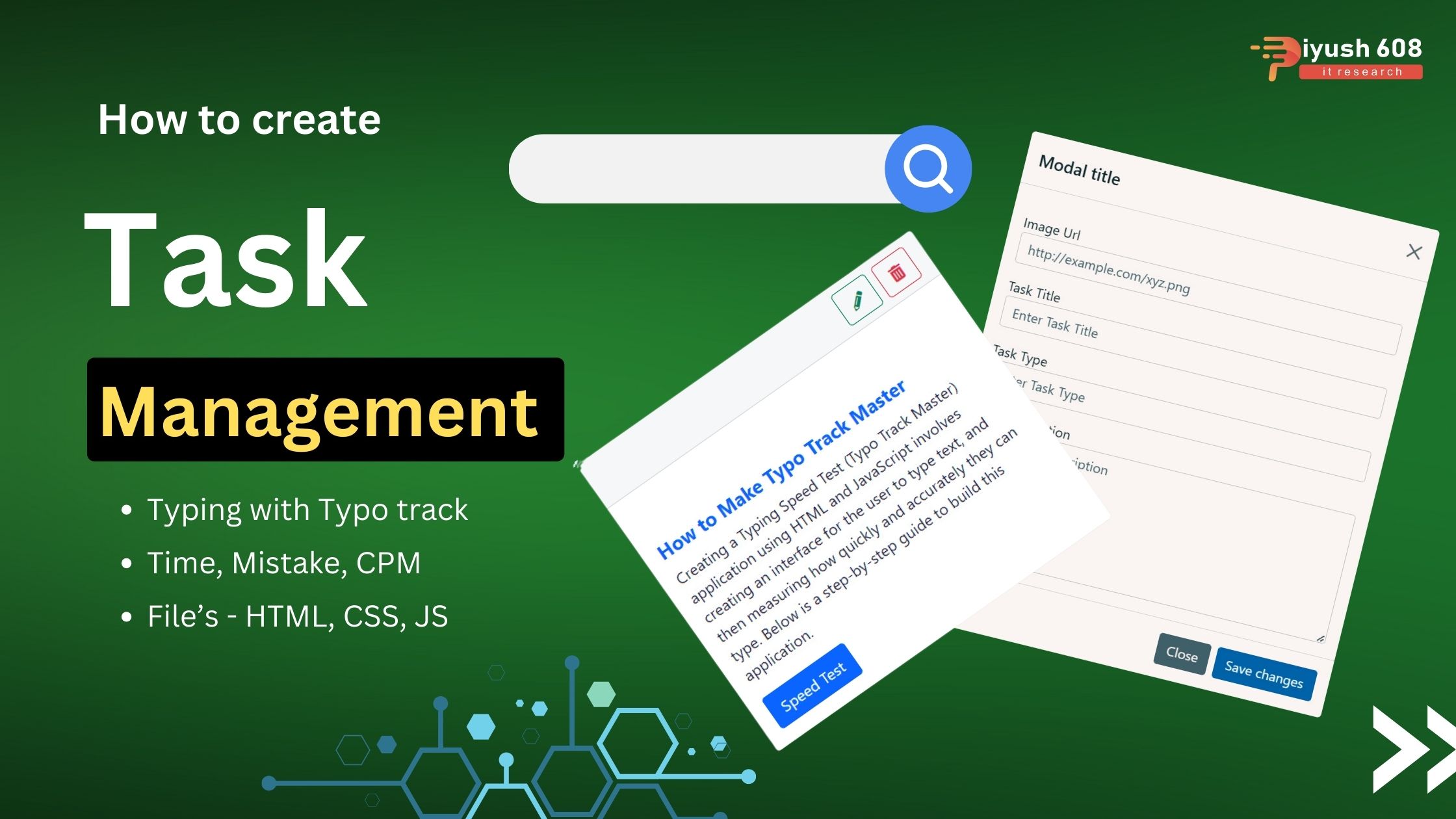
        <h5 class="modal-title" id="exampleModalLabel">Modal title</h5>
        <button type="button" class="btn-close" data-bs-dismiss="modal" aria-label="Close"></button>
      </div>
      <div class="modal-body">
        <div class="form-group mt-3">
    <label for="imageurl">Image Url</label>
    <input type="url" class="form-control" id="imageurl" aria-describedby="Image Url" placeholder="http://example.com/xyz.png">
  </div>

  <div class="form-group mt-3">
    <label for="tasktitle">Task Title</label>
    <input type="text" class="form-control" id="tasktitle" aria-describedby="Task Title" placeholder="Enter Task Title">
  </div>

  <div class="form-group mt-3">
    <label for="tasktype">Task Type</label>
    <input type="text" class="form-control" id="tasktype" aria-describedby="Task Type" placeholder="Enter Task Type">
  </div>

  <div class="form-group mt-3">
    <label for="taskdescription">Task Description</label>
    <textarea rows="6" type="text" class="form-control" id="taskdescription" aria-describedby="Task Description" placeholder="Enter Task Description"></textarea>
  </div>

      </div>
      <div class="modal-footer">
        <button type="button" class="btn btn-secondary" data-bs-dismiss="modal">Close</button>
        <button type="button" class="btn btn-primary" onclick="saveChanges()" data-bs-dismiss="modal">Save changes</button>
      </div>
    </div>
  </div>
</div>


    <nav class="navbar navbar-expand-lg navbar-light bg-light">
      <div class="container-fluid">
          <a class="navbar-brand fw-bolder text-primary " href="#">TaskY</a>
        <button
          class="navbar-toggler"
          type="button"
          data-bs-toggle="collapse"
          data-bs-target="#navbarSupportedContent"
          aria-controls="navbarSupportedContent"
          aria-expanded="false"
          aria-label="Toggle navigation"
        >
          <span class="navbar-toggler-icon"></span>
        </button>
        <div class="collapse navbar-collapse" id="navbarSupportedContent">
          <ul class="navbar-nav me-auto mb-2 mb-lg-0">
            <li class="nav-item">
              <a class="nav-link" href="index.html"><strong>home</strong></a>
            </li>
          </ul>
          <button
            class="btn btn-primary ml-auto"
             data-bs-toggle="modal" data-bs-target="#exampleModal"
          >
            <i class="fas fa-plus mr-2"></i>Add new
          </button>
        </div>
      </div>
    </nav>
    <div class="container">
     <div class="row mt-3">
      <div class="col">

      </div>

      <div class="col-sm-12 col-md-6 col-lg-4">
      <div class="input-group mb-3 shadow">
  <input type="text" class="form-control" placeholder="Search Here" aria-label="Search Here" aria-describedby="basic-addon2">
  <span class="input-group-text" id="basic-addon2"><i class="fas fa-search"></i></span>
</div>
      </div>

      <div class="col">

      </div>
     </div>

   <div class="row task__container">

   </div>


    </div>
    <script src="https://cdn.jsdelivr.net/npm/bootstrap@5.0.2/dist/js/bootstrap.bundle.min.js" integrity="sha384-MrcW6ZMFYlzcLA8Nl+NtUVF0sA7MsXsP1UyJoMp4YLEuNSfAP+JcXn/tWtIaxVXM" crossorigin="anonymous"></script>
  <script src="index.js">

  </script>
  </body>
</html>
JavaScript (script.js)
const taskContainer = document.querySelector(".task__container");
let globalStore = [];//array of objects
console.log(taskContainer);
const generateNewCard = (taskData) => `
  <div class="col-sm-12 col-md-6 col-lg-4">
  <div class="card">
  <div class="card-header d-flex justify-content-end gap-2">
   <button type="button" class="btn btn-outline-success"><i class="fas fa-pencil-alt"></i></button>
  <button type="button" class="btn btn-outline-danger" id=${taskData.id} onclick="deleteCard.apply(this,arguments)"><i class="fas fa-trash-alt" id=${taskData.id} onclick="deleteCard.apply(this,arguments)"></i></button>
  </div>
  <div class="card-body">
  <img class="card-img-top" src=${taskData.imageUrl} alt="...">
   <h5 class="card-title mt-3 fw-bolder text-primary">${taskData.taskTitle}</h5>
   <p class="card-text">${taskData.taskDescription}</p>
   <a href="#" class="btn btn-primary">${taskData.taskType}</a>
  </div>
  </div>
  </div>
  `;


const loadInitialCardData = () => {
  //localstorage to get tasky card data
const getCardData = localStorage.getItem("tasky");


  //covert to normal object
const {cards} = JSON.parse(getCardData);


  //loop over those array of task obejct to create HTML card , inject it to DOM
cards.map((cardObject) => {
  taskContainer.insertAdjacentHTML("beforeend", generateNewCard(cardObject));

  //update our globalStore
  globalStore.push(cardObject);
}

)

};

//Delete function

const deleteCard = (event) => {
  event = window.event;
  const targetID = event.target.id;
  const tagname = event.target.tagName;

  globalStore = globalStore.filter((cardObject) => cardObject.id !== targetID);
  localStorage.setItem("tasky",JSON.stringify({cards: globalStore}));

  if(tagname === "BUTTON") {
    return taskContainer.removeChild(event.target.parentNode.parentNode.parentNode);
  } else {
    return taskContainer.removeChild(event.target.parentNode.parentNode.parentNode.parentNode);
  }
};


const saveChanges = () => {
  const taskData = {
    id: `${Date.now()}`,
    imageUrl: document.getElementById("imageurl").value,
    taskTitle: document.getElementById("tasktitle").value,
    taskType: document.getElementById("tasktype").value,
    taskDescription: document.getElementById("taskdescription").value
  };


taskContainer.insertAdjacentHTML("beforeend", generateNewCard(taskData));

globalStore.push(taskData);
localStorage.setItem("tasky",JSON.stringify({cards:globalStore}));

};
This setup provides a basic task management application where users can add, complete, and delete tasks. You can expand it by adding more features such as editing tasks, saving tasks to local storage, or categorizing tasks.